 7 Data Recovery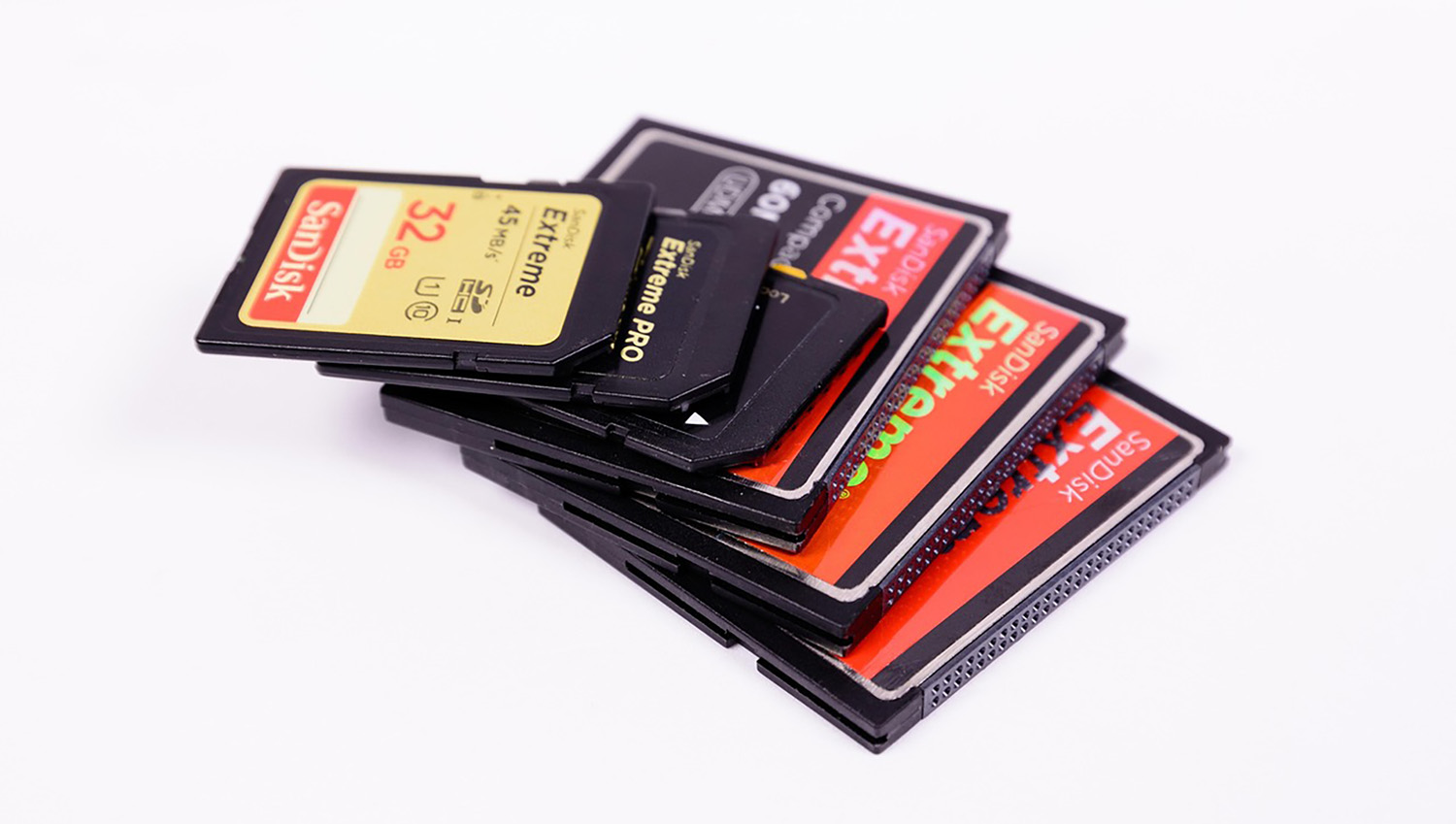
If you think about what is a memory card, it is a tiny removable chip that helps to store and move digital data from one device to another. It works in phones, cameras, tablets, even in some laptops or gaming consoles. You can use it to expand the storage of your device when the internal memory is not enough. Technically, a memory card is based on flash storage, which means it keeps the data even when the power is off. It does not have moving parts like a hard disk, so it does not make noise and can handle small shocks easily.
Today memory cards come in many types and sizes. Some give you just a few gigabytes, others can go up to 1 terabyte or even more. That is enough to keep thousands of high-resolution pictures or hours of 4K video in something smaller than your thumb. It sounds simple, but it’s actually one of the smartest storage inventions people use daily without thinking about it.
Components of a Memory Card
Even if a memory card looks simple from the outside, inside it is not simple at all. There are many small parts working together to make sure your data stays safe and can be read or written properly. Each piece has its own role, and if one fails, the whole card can stop working.
- The most important part is the NAND flash memory chip. That tiny chip is where all the information is actually stored. It keeps the data as small electrical charges in microscopic cells. Each cell either holds a charge (which means 1) or it does not (which means 0). The way those cells are made decides how much data the card can store and how long it will last. You may have seen names like SLC, MLC, TLC, or QLC on packaging – they show how many bits each cell can hold. SLC is the fastest and most reliable, while QLC gives more space but wears out faster.
- Next to the flash chip, there is a memory controller. This little processor is like the brain of the card. It tells where to save new files, corrects mistakes, and makes sure data spreads evenly so no single part of the chip wears out too quickly. Without this controller, data would get corrupted after a few rewrites and files might disappear.
- The connectors are also important because they let the card talk to your device. They are made of copper or sometimes covered with gold to make a better contact. Different types of cards have different layouts: SD and microSD use 9 pins, CFexpress works with PCIe/NVMe, and CompactFlash cards use 50 pins like old IDE drives. If even one of these contacts gets scratched or bent, the card may stop working or show random read and write errors.
- Inside, there is also a power control circuit that manages the voltage. It protects the memory chip and controller from sudden power drops or spikes. This small system is very important, especially for cameras that use a lot of power during fast photo bursts or long video recording.
- Everything is packed inside a protective shell, usually made from strong plastic or polymer material. It keeps dust, moisture, and static away from the delicate components inside. Professional cards sometimes use metal covers, they are harder, better for heat, and last longer under pressure or high temperature.
- And one more thing – on the side of many SD cards, you can see a small slider switch. When you push it to the “Lock” position, you cannot delete or change anything on the card. Many people see the warning “memory card locked” and think it’s an error, but it’s not. That little switch is only a mechanical protection that prevents writing new data until you unlock it again.
How Does a Memory Card Work?
It’s not enough to define a memory card, to really understand it, you need to know what happens inside when data is saved, read, or deleted. What looks like a quiet plastic chip is, in fact, a complex electronic system that constantly manages voltage levels, data integrity, and memory wear behind the scenes.
- When you take a photo or record a video, your device sends that data to the card in a stream of binary code (a sequence of 1s and 0s). Inside, the controller receives that signal and divides it into smaller fragments that fit into the card’s internal memory structure. Each fragment is stored in a page, and several pages together form a block. These blocks live inside NAND flash memory, where each cell either holds an electrical charge (1) or remains empty (0). That combination of millions of cells becomes your file.
- Reading works in reverse: the controller locates the relevant addresses in flash memory, retrieves the charge states from the cells, and reconstructs the digital data so your device can display it as a picture, video, or document. This all happens in microseconds.
- When you delete a file, the card doesn’t actually remove the data right away. It just marks that area as available, and the old bits remain until new data replaces them. Because NAND flash memory can’t overwrite existing data, each update follows an erase-before-write process, where the controller clears a full block before saving new information there. To extend the card’s lifespan, it also uses wear leveling, spreading data evenly across all blocks so none wears out faster than others.
- Throughout all read and write operations, the card relies on ECC (Error Correction Code) to detect and fix tiny errors, while the power management circuit keeps voltage stable during demanding tasks like burst photos or 4K recording.
Applications of Memory Cards
If you ever wondered what a memory card is used for, it’s used almost everywhere where data needs to be stored, moved, or kept safe in a compact form. These small chips quietly work inside most devices we use daily, like phones, cameras, drones, and even GPS units.
- The most basic use is simple – extra space. Many phones and cameras have limited internal memory, so adding a card is like slipping in a tiny removable hard drive. You can keep more pictures, more songs, or even more games without deleting anything.
- Another big use is moving files. When Wi-Fi is slow or not available, it’s easier to just take the card out and plug it into another device. Many people still prefer this over cloud services, as it’s faster, private, and doesn’t depend on the internet.
- A memory card also works as a quick backup. Photographers often swap cards between shoots to avoid losing work. Travelers carry spare ones in case the main card fills up or gets damaged. Some users even store personal documents on them, just like a pocket-sized drive.
- In security cameras and dashcams, the card’s job is to record video nonstop. It has to handle thousands of write cycles without failing. Drones depend on the same thing – lightweight but fast storage for high-resolution photos and video right in the sky.
- Then there are industrial and special-use devices. Medical tools store patient records on small cards, GPS units use them for maps, and 3D printers keep design files there.
If you want to know when a memory card is appropriate, it is almost in every situation we mentioned above. But a memory card works great as temporary storage or as a quick backup option, not as your main backup device. Over time, these cards can wear out, and data might get corrupted if used constantly for heavy rewriting. So, for long-term backups or important archives, it’s better to choose an SSD or HDD drive.
Types of Memory Cards
Different devices use different kinds of memory cards, and each type is developed to match a specific purpose.
- The most familiar format today is the SD (Secure Digital) card. It’s a standard choice for photo and video cameras, laptops with built-in readers, and handheld consoles like the Nintendo Switch. The smaller microSD version works in phones, tablets, drones, and dashcams (basically anywhere compact size is more important than physical durability). Both types share the same flash-memory principles but use different connectors.
- Professional photographers and filmmakers often rely on CompactFlash (CF) or the newer CFexpress cards. CompactFlash dominated the DSLR market for years because of its rugged body and consistent write speed. CFexpress improved on that design, and it uses PCIe and NVMe technology similar to modern SSDs, allowing it to record 4K or 8K video without frame drops.
A quick throwback to the early days of removable storage. Before SD and microSD took over, brands tried to invent their own versions. Sony had the Memory Stick, Olympus and Fujifilm pushed the xD-Picture Card, and Toshiba made the ultra-thin SmartMedia. Each looked promising for its time but couldn’t keep up with the growing need for more space and speed, and so they quietly became part of tech history.
Advantages of Memory Cards
We know it can be tricky to keep track of all this information, especially when it’s about something as tiny as a memory card. So, to make it easier, here’s a quick summary of what makes them so handy:
Pros
- A memory card may look tiny, but it can store a surprising amount of data (from gigabytes to even a few terabytes), enough to keep all your travel photos or long video projects in one place.
- You don’t have to set anything up or plug in extra cables; just slide it in, and it starts saving files right away.
- It’s also one of the most affordable ways to get more space.
- Despite its size, it holds up well in everyday use, as there are no moving parts to shake loose or break when you pull it out too fast.
- Performance-wise, it’s quick enough for 4K recording, burst photo shooting, and transferring large files without delay.
- It fits into nearly every kind of device you can think of.
Disadvantages of Memory Cards
We’ve already talked about why memory cards are handy, but it’s fair to admit they’re not perfect. They come with a few hidden drawbacks that can easily catch you off guard.
- They don’t last forever. Each card has a limited number of write and erase cycles. Over time, the memory cells wear out, and performance slowly drops.
- They can get corrupted. Removing a card too quickly or interrupting a file transfer can damage stored data. A single bad connection or sudden power loss is sometimes enough to make files unreadable.
- They’re easy to lose. One slip, and your entire photo collection could disappear under a car seat or into a backpack pocket you’ll never check.
- Flash memory isn’t made for archiving. If you need to keep data for years, an SSD or HDD is a safer choice.
- Cheap, low-grade cards may look the same as high-end ones but transfer data much slower.
- Unlike a hard drive that often shows signs before dying, a faulty memory card might just stop working one day, leaving no chance to recover data easily.
Despite all these downsides, memory cards are hard to replace. In some cases, they’re necessary, and cameras are the best example. Without an SD card inside, every photo you take just disappears the moment you press the shutter. So, treat your cards with care. Don’t wait until one starts failing and replace them from time to time, and avoid removing them while your device is still working. A little attention goes a long way in keeping your files safe.