 7 Data Recovery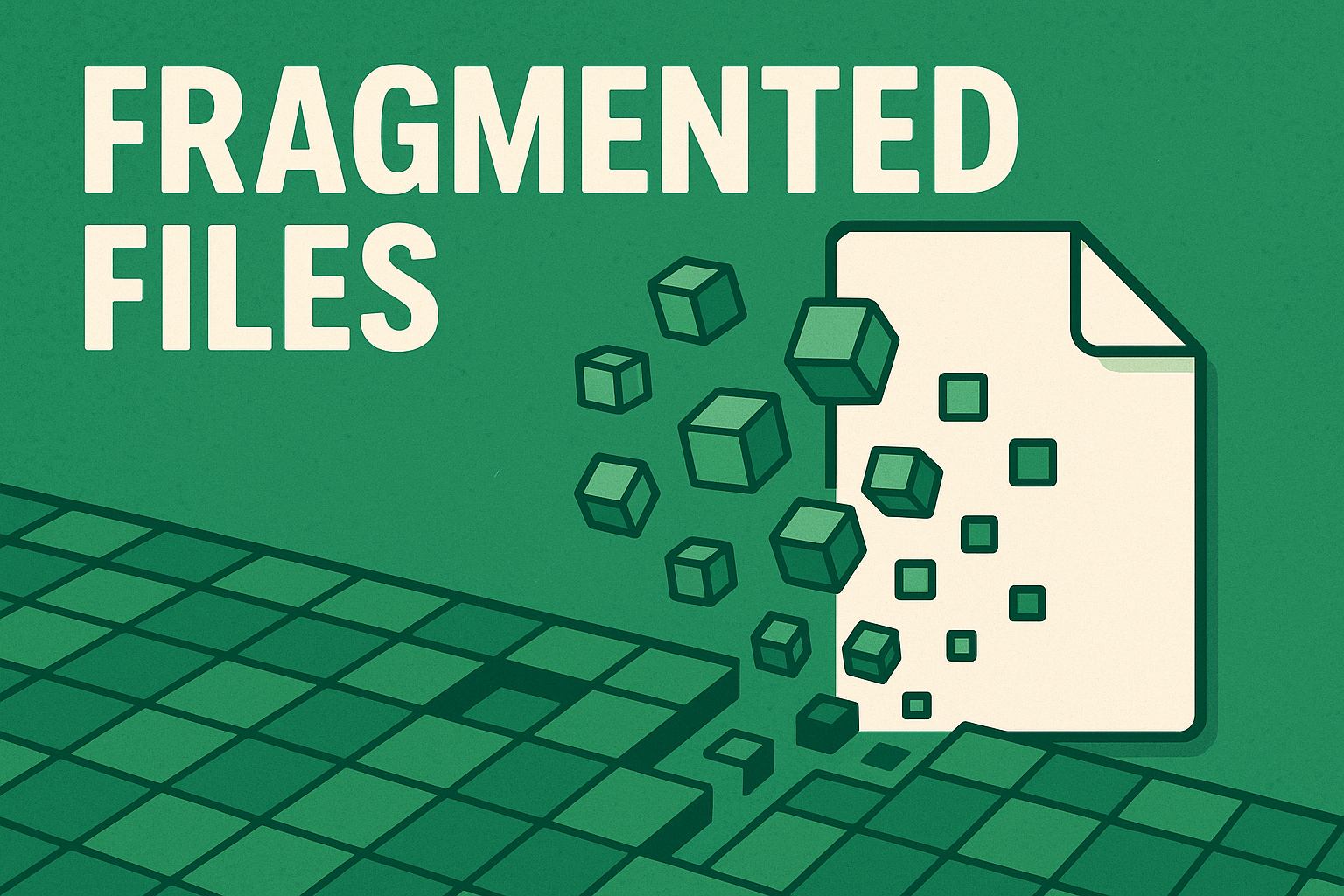
Below, we break down file fragmentation meaning, causes, types, and its real-world impact, plus some practical FAQs.
What Is File Fragmentation?
File fragmentation is a condition that occurs when a single file is split into multiple pieces that are stored in different locations on a storage device, instead of being saved as one continuous block. These pieces (called fragments) are scattered across the drive, and the file system must track each of them to reassemble the file when you open or use it.
When the system can’t find one large enough chunk of free space to store the file all in one go, it fills in smaller gaps across the drive. So even though the file appears intact to you, behind the scenes, it might be broken into dozens (or hundreds) of fragments.
So, what are fragmented files?
- They are files split into pieces (fragments) scattered across the drive.
- The file system keeps track of where each piece lives through its own metadata.
- To open that file, the drive must jump between those locations and rebuild the file in memory.
Causes of Fragmentation
Fragmentation appears naturally on active systems. You don’t need to “do something wrong” for it to happen. Typical causes include:
- Frequent creation and deletion of files. The file system reuses holes left behind by deleted files. When a new file does not fit in a single hole, it splits it into several pieces.
- Low free space on the volume. When a drive is nearly full, it has very few large continuous regions left. New or growing files can only fit if the file system chops them into fragments that match scattered free space.
- Files that grow over time. Databases, email archives, large logs, and virtual machine images start small and expand. When there is no space right after the existing file, the file system places the extra data somewhere else.
- Multi-user and server workloads. On busy systems with many simultaneous writes (file servers, game libraries, torrent clients), the file system constantly fills tiny gaps all over the disk, which increases file fragmentation and free space fragmentation.
- Legacy file systems and old habits. Older file systems (like FAT/FAT32) have simpler allocation strategies and fragment more easily than newer ones that use extents and smarter allocation.
Types of Fragmentation
Not all fragmentation looks the same. File fragmentation is a subset of file system fragmentation. And it’s not the only kind. Here are a few other distinct types of fragmentation often grouped under the file fragmentation umbrella:
File Fragmentation (Extent Fragmentation)
This is the classic form of fragmentation most users are familiar with. A single file is split into multiple parts, called fragments or extents (in extent-based file systems like NTFS, ext4, or APFS).
Operating systems try to minimize this by placing new files contiguously, but it’s often unavoidable as space fills up. Most disk optimization tools report fragmentation percentages based on this type alone.
Free Space Fragmentation
This type refers to how unallocated space is distributed on the disk.
Over time, as files are created, deleted, and resized, the free space gets chopped into many small, separate sections. When the OS needs to save a new file, it may have to break it into chunks that fit the scattered gaps – causing more file fragmentation.
Some modern file systems insert “free space bubbles” on purpose, reserving room to grow nearby files and prevent future fragmentation.
Think of free space fragmentation as setting the stage for everything else. If your drive has lots of tiny pockets of free space, contiguous file writes become nearly impossible.
File Scattering (Related-File Fragmentation)
This one is more subtle (and arguably more important for performance).
File scattering describes a situation where related files are stored far apart on the disk, breaking locality of reference.
For example, if an app needs to load five config files and two libraries together at startup, and those files live in different corners of the disk, performance suffers – even if each file is technically unfragmented.
This is also called application-level fragmentation, and it’s harder to measure because it depends on how specific software accesses groups of files.
Metadata and Directory Fragmentation
Even if your user data is stored efficiently, the catalogs and indexes that track those files can become fragmented.
Every file system stores metadata (file names, timestamps, permissions, block maps, etc.) in specialized structures like the MFT (NTFS) or catalogs (HFS+). Over time, as files are added, renamed, or deleted, these structures can fragment internally or across the disk.
This mostly impacts workloads with thousands of small files, like mail servers, large Git repos, or logging systems.
Directory fragmentation can also occur, where a folder’s internal records are no longer stored contiguously. While it’s often invisible to the user, it can slow down file access, directory listing, and even boot times in extreme cases.
Some file systems (like NTFS and HFS+) are particularly vulnerable to metadata fragmentation but can’t easily defragment while the system is active.
Pros of File Fragmentation
This might sound counterintuitive, but file fragmentation is not 100% evil. It is usually a side effect of design choices that have some benefits:
- Better use of available space. Fragmentation lets the file system fill holes instead of wasting them. Without it, you would need much more free space to keep writing new data.
- Smoother performance under heavy random workloads. For busy multi-user systems, the file system may prioritize quick writes over perfectly contiguous files. It accepts some fragmentation to keep write latency low.
- Compatibility with copy-on-write and snapshots. Modern file systems that support snapshots (like Btrfs, APFS, ZFS) rely on copy-on-write. That approach naturally scatters data in different regions as snapshots and new writes accumulate. It looks like fragmentation, but it unlocks powerful features like instant snapshots and fast clones.
- Flexible file growth. Files that need to grow on demand (VM disks, databases) can do so without re-writing the entire file to a new contiguous area each time.
So the “pros” of fragmentation are really pros of the allocation strategies that allow it. The fragmentation itself is the trade-off.
Negative Consequences of File Fragmentation
Now, the part most users feel day to day. On spinning hard drives (HDDs), file fragmentation hurts performance because the drive head must move around constantly:
- Slower file access. Opening a fragmented file requires multiple seeks instead of one or two. This increases latency and lowers throughput.
- Longer boot times and app launches. If many boot files and application binaries are fragmented, the system reads them in small chunks from all over the disk. That turns what should be mostly sequential I/O into a lot of random I/O.
- Slower antivirus and backup scans. Backup tools and antivirus software read large portions of the drive. Fragmented files and fragmented free space force the drive to seek more often, so every full scan or backup takes longer.
- Higher mechanical wear on HDDs. More seek activity means more mechanical motion. While modern drives handle this well, heavy fragmentation still contributes to extra wear and tear over long periods.
On SSDs, the story is different:
- Access time is almost the same everywhere, so file fragmentation has far less impact on speed.
- However, unnecessary defragmentation passes can increase write counts, which is bad for SSD endurance. Modern operating systems usually avoid full SSD defrag and rely on TRIM and other optimizations instead.
FAQ
- File fragmentation refers to the condition where a single file is broken into multiple non-contiguous pieces scattered across the storage medium. When you hear the term fragmented files, it means that instead of one seamless block of data, the file has been split into parts, each stored in different locations. So, fragmented files meaning boils down to this: the file still exists, but the way it’s laid out on the disk forces the system to work harder to access it.
- Disk fragmentation (also known as file system fragmentation) is a broader term. It describes the overall disorganized state of the storage volume, including fragmented files, fragmented metadata, and scattered free space. While file fragmentation is about how individual files are stored, disk fragmentation reflects the health and layout of the entire file system.
- The drive shows signs of failure (clicking, grinding, frequent read errors, S.M.A.R.T. warnings).
- The system already freezes or crashes when you access certain files.
- You do not have a backup of irreplaceable data.
- Try to keep at least 10-20% of the volume free. The more free space the file system has, the easier it can place files contiguously.
- Use modern file systems and operating systems - NTFS, APFS, ext4, and similar systems use smarter allocation strategies and background optimization.
- Let the OS handle scheduled optimization. Leave it enabled for HDDs. For SSDs, it sends TRIM and does light optimization rather than classic defrag.
- Avoid constant large installs/uninstalls on nearly full drives.
- Prefer SSDs for OS and applications.
- Core OS files
- Drivers
- Services
- Startup applications
- FAT/FAT32 - very simple allocation. These file systems fragment easily and rely heavily on external defrag tools.
- NTFS (Windows) uses extents and more advanced strategies to limit fragmentation. Windows also includes built-in optimization that runs automatically.
- ext4 (Linux) uses delayed allocation and extents to place data efficiently and reduce file fragmentation. It usually fragments less than older ext2/ext3 under typical workloads.
- APFS (macOS) relies on copy-on-write and snapshots. On paper, this looks like heavy fragmentation, but SSD-centric design and smart allocation keep real-world performance strong. macOS also avoids traditional user-facing defrag tools.
- ZFS/Btrfs - advanced copy-on-write file systems with built-in checksums, snapshots, and pools. They manage layout differently and tolerate apparent fragmentation while still delivering solid performance on modern hardware.