 7 Data Recovery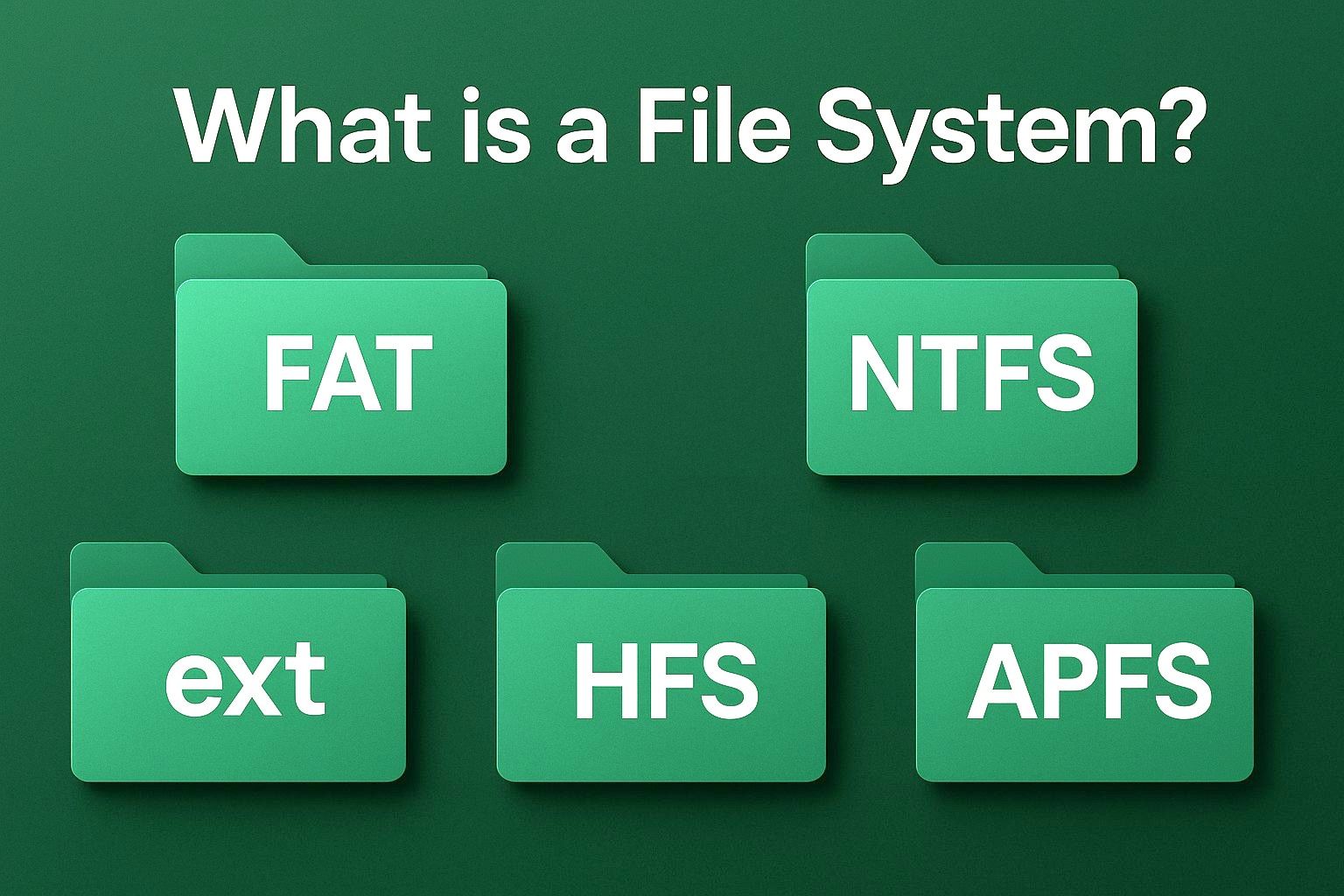
A file system is the underlying method an operating system uses to control how data is stored and retrieved on a storage device. That’s the simplest file system definition. Whether you’re using a hard drive, SSD, USB flash drive, or memory card, the file system determines how files are named, stored, organized, and accessed. Without a file system, your device wouldn’t know how to separate one file from another or how to find anything at all.
The Inner Workings of a File System
To really understand how a file system works, it helps to look at its internal architecture. From the moment a user clicks “Save” or “Open,” a chain of systems comes into play. Here’s how that process is structured.
User Application
This is where it all starts. The user application is any program you’re actively using, like a photo viewer or file manager. When you read, write, rename, or delete a file, that request goes through the operating system’s file management layers.
Logical File System
Next up is the logical file system. This layer deals with metadata, things like file names, timestamps, folder structure, and user permissions. It handles abstract file operations and ensures that directory hierarchies and access controls stay consistent.
Virtual File System (VFS)
The Virtual File System acts as a unifying layer that sits between the logical file system and all the various physical file systems that might exist. Think of it as a translator. It allows the OS to interact with multiple file system types (like NTFS, APFS, ext4) in a consistent way (even if the device has several partitions running different formats).
Physical File System
This is where real storage work happens. The physical file system manages the actual location of file data on the drive – writing blocks, updating sectors, and making sure everything lands in the right spot. It works directly with your hard drive, SSD, or flash storage.
Below are the most widely used file system examples, including legacy formats and modern alternatives used by Windows, macOS, and Linux:
FAT (File Allocation Table), FAT16, FAT32
The FAT file system (short for File Allocation Table) is one of the oldest file systems still in use today. Originally developed by Microsoft for MS-DOS in the late 1970s, it was later upgraded to FAT16 and FAT32 to support larger storage capacities. FAT-based formats are still widely used in USB flash drives, memory cards, and devices that require maximum compatibility across different platforms.
The basic principle of the FAT file system is simple: it maintains a table (the “allocation table”) that tracks where file data is stored on the disk. Each time a file is written, the system updates the table with which clusters are in use and which are free. That simplicity makes it reliable and easy to implement.
Advantages:
- Cross-platform compatibility. FAT16 and FAT32 are universally supported by Windows, macOS, Linux, game consoles, digital cameras, and smart TVs.
- Minimal metadata and simple structure make it ideal for low-power or embedded systems.
- The straightforward layout of the file table allows recovery tools to scan and restore deleted files more easily.
Still the go-to file system for USB drives and SD cards that need to work everywhere.
Disadvantages:
- FAT32 cannot store files larger than 4 GB, which is a major drawback for high-res videos or disk images.
- FAT does not support permissions, encryption, or access control (unsuitable for sensitive or multi-user environments).
- The lack of journaling or modern allocation strategies means fragmentation builds up quickly, slowing performance.
- Older versions like FAT16 follow the 8.3 naming rule (eight characters for the filename, three for the extension).
exFAT (Extended File Allocation Table)
exFAT, or Extended File Allocation Table, is a Microsoft-designed file system introduced in 2006. It was built as an upgrade to FAT32, aimed specifically at flash-based storage like SDXC cards and external SSDs. exFAT removes many of the limitations of FAT32 (most notably the 4 GB file size cap) while keeping the broad device compatibility that made FAT so popular.
exFAT is one of the most versatile types of file systems for cross-platform compatibility. It has become the de facto standard for high-capacity external drives that need to work between Windows and macOS without any special drivers or tricks.
Advantages:
- Supports large files and partitions. exFAT can handle individual files larger than 4 GB and volumes up to 128 PB, suitable for 4K videos, disk images, and large backups.
- Native support in Windows and macOS. Linux can use it with a simple software package.
- Smaller cluster sizes reduce wasted space on high-capacity drives.
- Lightweight and fast.
Disadvantages:
- No journaling. Like FAT32, exFAT does not track changes to file metadata.
- It lacks file permissions, encryption, and user access control.
- Still susceptible to fragmentation. While improved, it doesn’t completely eliminate fragmentation issues over time.
- Not ideal for system drives.
NTFS (New Technology File System)
NTFS stands for New Technology File System and is the default file system for modern Windows operating systems, starting with Windows NT in 1993 and continuing through Windows 11. It was designed to replace FAT file systems with a more advanced, secure, and scalable format suitable for both personal and enterprise use.
It’s the backbone of Windows file system storage and is also commonly used in external drives when advanced features are needed.
Advantages:
- File-level security and permissions. NTFS supports Access Control Lists (ACLs).
- File size limits are effectively in the terabyte to petabyte range.
- Journaling for crash recovery.
- Supports compression, encryption (EFS), hard links, symbolic links, quotas, and sparse files.
Disadvantages:
- macOS can read NTFS by default, but can’t write to it without third-party drivers. Linux can write with NTFS-3G, but performance may vary.
- Not ideal for removable drives (unless you’re using it only with Windows, FAT32 or exFAT is usually better for USB drives and SD cards).
- More complex structure.
HFS and HFS+
HFS, or Hierarchical File System, was developed by Apple in 1985 for use with early Macintosh computers. It was later replaced by HFS+, also known as Mac OS Extended, which became the default file system for macOS from 1998 until the introduction of APFS in 2017.
HFS+ improved on the limitations of the original HFS by adding support for larger files, Unicode naming, journaling, and improved efficiency. Although it’s now considered legacy, many older Macs and external drives still use it.
Advantages:
- Deep integration with macOS and its native features.
- HFS+ can handle file sizes and volumes far beyond what HFS could manage.
- Journaling support (in HFS+).
- HFS+ introduced full Unicode support for international file naming.
Disadvantages:
- Both HFS and HFS+ suffer from file fragmentation, especially over long-term use.
- Limited cross-platform support.
- Obsolete. Apple has moved to APFS, and HFS/HFS+ is no longer actively developed or recommended for new devices.
APFS (Apple File System)
APFS, or Apple File System, is the modern default file system for macOS, iOS, iPadOS, tvOS, and watchOS. Apple introduced APFS in 2017 to replace HFS+. It was designed with speed, data integrity, and encryption in mind for Apple’s ecosystem.
APFS brings advanced features like snapshots, native encryption, space sharing, and cloning.
Advantages:
- Optimized for SSDs.
- Offers multi-key encryption for files and metadata.
- Enables fast system backups and file duplication without wasting extra space.
- Allows multiple volumes to share the same physical storage dynamically.
Crash-safe journaling (Copy-on-Write).
Disadvantages:
- APFS volumes can’t be read by older macOS versions (pre-High Sierra).
- Performance trade-offs on HDDs. While great for SSDs, APFS isn’t as optimized for traditional spinning hard drives.
- No native Windows/Linux support.
ext (Extended File System), ext2, ext3, ext4
The Extended File System (ext) family is the backbone of Linux file system storage. Originally introduced in 1992 as ext, it evolved through ext2, ext3, and finally ext4, which is now the default file system for most modern Linux distributions. ext4 combines scalability and performance – it is one of the most widely adopted file system types in open-source environments.
Advantages:
- High-performance.
- ext4 supports delayed allocation and multiblock allocation.
- Handles volumes up to 1 exabyte and individual files up to 16 terabytes.
- Like NTFS and HFS+, ext4 maintains a journal to help recover data after crashes.
- Backward compatible (ext4 can mount and read ext3 and ext2 file systems).
- Extensive Linux tool support.
Disadvantages:
- No native support on Windows/macOS.
- No built-in encryption or compression (these require external layers or kernel modules).
- Although reliable, other formats like exFAT are better suited for USBs or SD cards used across different platforms.
- TRIM support depends on distro/kernel version.
Issues Handled by the File System
In short, the file system acts as the problem-solver that keeps your storage working efficiently and safely. Here are some of the main issues a file system is designed to handle:
- Data organization. Manages how files and folders are arranged on the storage device.
- Storage allocation. Determines where on the disk each file is physically written, and keeps track of used vs. free space.
- Fragmentation control. Tries to minimize fragmentation (where file parts are scattered across the disk), which can impact performance.
- Crash recovery. Many modern file systems use journaling or copy-on-write strategies to help recover data after power loss or system crashes.
- Access control. Enforces permissions and security rules, so only authorized users or apps can read/modify/delete certain files.
- Naming and path resolution. Keeps track of file names, extensions, and paths across different folders or partitions.
File Allocation Methods
When a file is saved, the system must decide where on the disk the data will be written. File allocation methods define how a file system assigns physical storage blocks to store file content.
There are three primary allocation strategies used across modern file systems:
- Contiguous Allocation – stores the entire file in a single, continuous block of memory. It’s fast for sequential access but suffers from fragmentation and lacks flexibility for growing files.
- Linked Allocation – breaks the file into scattered blocks, each pointing to the next. It avoids fragmentation but makes random access slower and adds pointer overhead.
- Indexed Allocation – creates a separate index block for each file that lists all the block addresses where file data is stored. It offers fast access and better scalability, especially for large or fragmented files.
Each method has strengths and weaknesses, and modern file systems often combine elements from multiple strategies to optimize performance and storage efficiency.
« Back to Glossary Index