 7 Data Recovery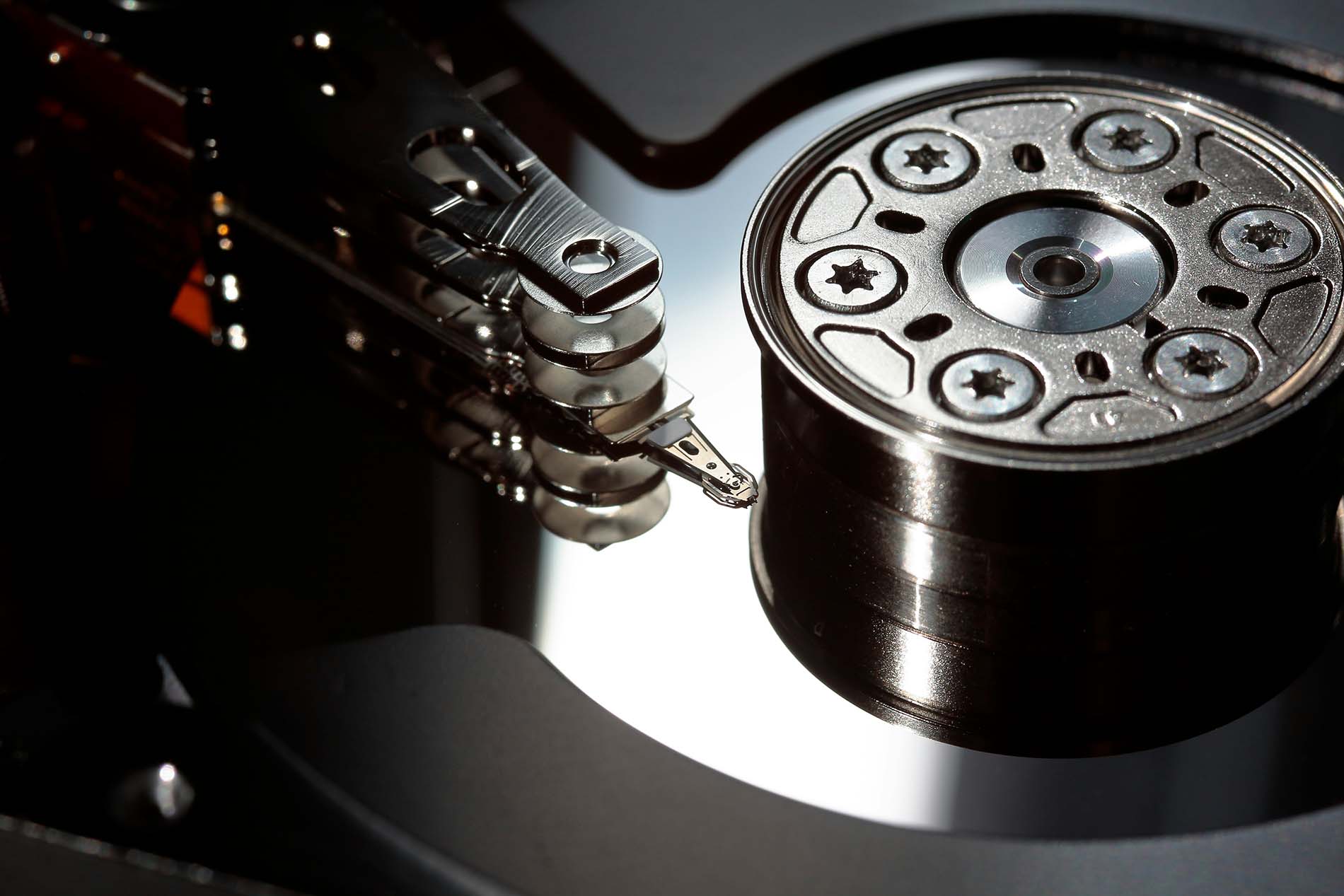
We often bring up hardware failure as one of the biggest complications in data recovery in our guides. So, it makes sense to explain what hardware failure actually is, what causes it, and how you can spot the early warning signs before things get worse. Because most hardware issues don’t come out of nowhere, the system usually whispers long before it dies.
Common Causes of Hardware Failure
Why does hardware fail in the first place? Even brand-new systems can run into trouble if one component behaves unpredictably, and older machines tend to collect a whole mix of hardware issues over the years. Some failures show up suddenly (a drive that clicks, a GPU that overheats), while others build up slowly until the system finally gives up.
Below we’ve gathered a list of the hardware problems that show up most often, along with the fixes and practical tips you’ll need to deal with them. Take a look, find the one that applies to your situation, and follow the guidance. And honestly, we hope you’re reading this section out of curiosity and general tech awareness, not because your system is making strange noises or refusing to boot (but if something really did go wrong, at least you’ll know where to start).
1. Human Error
If we’re being honest, most hardware issues start with people, not components. Accidental drops, unplugging drives while they’re still writing data, spilling coffee on a laptop, forcing cables the wrong way, misconfiguring BIOS settings, installing incompatible parts – all of this falls under human error. Even something as simple as stacking an external hard drive on a vibrating speaker or moving a PC while it’s running can trigger damage.
Human-caused hardware failures don’t always announce themselves. You might see:
- Sudden read/write errors
- The drive refusing to mount
- Strange ticking or scratching noises (especially with HDDs)
- Random shutdowns or freezes
- Missing files right after a forced unplug
- A device that looks physically fine but behaves completely unpredictably
Sometimes the symptoms appear immediately after the incident, and sometimes they show up days later.
How to fix it (or avoid making it worse)? Human error is easy to cause and tricky to undo, so the “fix” depends on what happened:
- If the drive was dropped, stop using it immediately. Physical damage gets worse with every attempt to read or write. Avoid running CHKDSK, fsck, First Aid, or any repair tools (they can make the damage permanent).
- If you unplugged the disk too early, reconnect it and only copy recover the data you still can. File system repair tools may help, but don’t force multiple scans.
- If you spilled water, power off instantly, disconnect everything, and let the device dry completely before turning it on. If it was a lot of liquid, treat it as a critical failure and consult professionals.
- If you misconfigured something (BIOS, RAID settings, jumpers, etc.), revert the last change. If you aren’t sure what you changed, reset settings to default and start again slowly.
- And as always, don’t try to physically open drives at home. That never ends well.
2. Overheating
Overheating sits near the top of hardware problems because it shows up quietly and then escalates fast. A system may run fine for months and then, out of nowhere, start slowing down, freezing, or shutting off in the middle of work. Heat stresses every component inside a computer (CPU, GPU, RAM, SSDs), and especially hard drives. And in many cases, overheating happens because of simple things: dust buildup, blocked vents, a dying cooling fan, or a user leaving the system in a spot with no airflow. Even accidental damage counts here. A laptop dropped onto a blanket, a PC tower pushed too close to a wall, or someone placing a running external drive on a radiator – all of that creates conditions where temperatures climb far beyond safe limits.
Signs of overheating:
- The computer slows down under even light workloads
- The system shuts itself off with no warning
- Fans spin at full speed far more often than they should
- The case or the laptop chassis feels unusually hot to the touch
- programs crash at random (especially during video editing, gaming, or data-heavy tasks)
- SMART warnings on hard drives report high temperature values
How to fix it? Before starting repairs, it helps to treat overheating as a process of elimination: first remove the heat, then prevent it from returning. Once you know what’s causing the temperature spike, the actual fix is usually simple:
- Remove dust from fans, heat sinks, filters, and vents
- Make sure the computer has proper airflow; keep vents unobstructed and avoid soft surfaces like beds or couches.
- Check that all fans spin normally and replace any that wobble or stall.
- Apply fresh thermal paste to the CPU and GPU if the device is old or temperatures remain high.
- Keep external hard drives and SSDs away from heat sources and store them on flat, ventilated surfaces.
If overheating continues, test the system under load. A failing fan controller or PSU can also cause heat spikes and may require professional repair.
3. Hard Drive Failure
A failing hard drive is one of the most stressful hardware problems you can face. Unlike overheating or random glitches, drive failure puts real data at risk. And to make things worse, many people don’t notice the early warning signs until the disk starts clicking or disappears from the system entirely.
Signs of hard drive failure:
- Files take unusually long to open or save
- The drive makes clicking, grinding, or repeating “chirp” sounds
- Frequent system freezes, crashes, or random reboots
- SMART warnings (“S.M.A.R.T. status not verified”, “Drive failing soon”)
- Folders disappear, files refuse to open, or you get sudden corrupted file errors
- The drive sometimes appears in Disk Management/Disk Utility and sometimes doesn’t
How to fix it? A failing hard drive is not the place for experiments. Every extra minute you keep using it increases the chance of permanent data loss. Now the practical steps:
- Stop writing to the drive immediately. Any new data (even temporary system files) can overwrite sectors you may still recover.
- Copy important files to another disk. If the drive disconnects mid-copy, take it as a warning and do not retry aggressively.
- If backup isn’t possible, create a byte-to-byte image. This preserves what’s left before the disk degrades further. For severe cases, specialized data-recovery software is safer than random freeware utilities.
- Check cables, power connectors, and USB/SATA adapters. Sometimes the “failure” is nothing more than a loose cable or a bad external enclosure.
- Run SMART diagnostics, but don’t repair-scan the drive. Tools that run “surface tests,” “repairs,” or “sector remapping” can push a dying drive over the edge.
- If the drive shows mechanical symptoms (clicking/grinding), stop everything. These are physical issues, and no software can fix them. Only a professional recovery lab has a chance.
4. Power Supply Issues
A failing or unstable power supply causes far more computer problems than most people expect. Every component inside the system depends on clean, steady power. When the PSU starts to weaken, delivers inconsistent voltage, or shuts itself off under load, the entire machine becomes unpredictable. In many cases, people blame the motherboard or the GPU when the real problem is simply a tired or low-quality power supply.
Signs of power supply issues
- Random shutdowns or restarts, especially when launching games, heavy apps, or anything that increases system load
- Burning smell, electrical buzzing, or crackling noises coming from the PSU
- Peripherals disconnecting or behaving erratically
- System refusing to boot until you unplug and plug it back in
- Visible damage (swollen capacitors, frayed cables, scorched connectors)
How to fix it? Once you’re confident the power delivery is unstable, here’s what you can do:
- Check the outlet and surge protector. Faulty wall sockets or cheap surge strips often cause inconsistent voltage.
- Test with another power cable.
- Remove dust buildup. Overheating inside the PSU forces it to shut down as a safety measure.
- Check connections. Loose motherboard or GPU power connectors can mimic PSU failure.
- Use a PSU tester or multimeter. If you have the tools, measure the rails to confirm instability.
- Replace the PSU if needed. If the unit makes noise, smells strange, or fails voltage checks, it’s time for a new one. Choose a reputable brand with 80+ certification.
5. Faulty RAM
Memory issues can cause some of the most confusing hardware problems you’ll ever run into. RAM failures often hide behind random hardware errors, freezes, or crashes that don’t seem connected to anything you’re doing. Since RAM sits at the center of everything your computer processes, even a small defect can throw the whole system off balance.
Signs of faulty RAM
- Your computer restarts without warning, often during basic tasks
- Apps that normally run fine suddenly crash or refuse to open
- You see “memory-related” errors, blue screens, or kernel panics
- Files become corrupted for no obvious reason
- The system struggles to boot, or it loops endlessly before loading the OS
How to fix it?
- Run a proper memory test (most operating systems include a built-in diagnostics tool, and there are reliable third-party testers as well). These tools scan each memory module to pinpoint which one is misbehaving.
- If the issue appears after installing new RAM, make sure the sticks are seated correctly and compatible with your motherboard. Mismatched speeds or unsupported configurations can mimic the symptoms of failing hardware.
- When a module fails consistently during tests, the only real solution is replacement. RAM isn’t repairable in the traditional sense, and continuing to use a defective stick will only lead to more corrupted files and system instability.
6. Motherboard Defects
The motherboard sits at the center of the entire system, so when it develops faults, even small ones, the symptoms often look random. A damaged trace, a failing voltage regulator, or a dying chipset can trigger everything from sudden freezes to USB ports that mysteriously stop responding. And just like with hard drives or RAM sticks, accidental damage is still one of the most common causes. A system that took a fall, a liquid spill, or an improvised “cleaning attempt” with the wrong tools can easily end up with a compromised board.
Signs of motherboard problems
- The computer powers on but shows no display
- Intermittent freezes or shutdowns with no clear pattern
- Ports (USB, audio, Ethernet) stop working one by one
- RAM slots or PCIe slots fail to detect connected components
- Visible burns, corrosion, or swollen capacitors
- System refuses to POST even though the components test fine in another machine
How to fix it? Approach motherboard repairs with realistic expectations -some faults are reversible, others simply aren’t. Here’s what you can do:
- Check for loose connections or shorts. Mis-seated RAM, GPU, or a misplaced standoff screw under the board can mimic serious failure.
- Inspect the board visually. Swollen capacitors, scorch marks, or corrosion often tell you the story right away.
- Test components individually. Sometimes the board looks guilty, but the actual culprit is the PSU or RAM.
- Update or reset the BIOS/UEFI. Corrupted firmware can cause symptoms that feel like hardware faults.
In the majority of cases, a severely faulty motherboard needs replacement. If the system holds valuable data, create a backup before swapping hardware.
7. GPU or CPU Malfunction
A failing CPU or GPU control almost every operation inside the system. The CPU handles general processing, while the GPU manages graphics, gaming, video rendering, and sometimes even computational workloads. When either of them misbehaves, you may see crashes, strange visual glitches, slowdowns, or spontaneous reboots, and at first, it’s not obvious which part is responsible. Heat, age, manufacturing defects, poor power delivery, or damaged thermal paste often play a role.
Signs you may notice:
- Random system freezes, especially under load (gaming, editing, multitasking)
- Visual artifacts on the screen: flickering, lines, distortion, or color blocks
- Sudden shutdowns or reboots when launching demanding applications
- The system becomes unusually hot even during simple tasks
- In severe GPU failures, the monitor may not display anything at all, even though the computer powers on
How to fix it? Troubleshooting a CPU or GPU takes patience, because issues often appear only when the component is under stress.
- Start by checking thermals. Clean dust from fans, ensure unobstructed airflow, and reapply thermal paste if the chip hasn’t been serviced in years.
- For GPUs, reseat the card into the PCIe slot and check that all power connectors are firmly attached.
- If crashes occur only under heavy load, stress-test components one at a time (Prime95 for CPU, FurMark or similar tools for GPU). Consistent failures during these tests usually reveal the faulty part.
- When the malfunction stems from age or irreversible physical damage, replacement is the only stable long-term solution.
7. Aging or Worn-Out Components
Even the best hardware doesn’t run forever. Electronic components slowly degrade with heat cycles, electrical stress, vibration, dust buildup, and simple everyday use. A system may behave perfectly for years and then start showing strange glitches that don’t point to one obvious culprit. That’s usually the moment when age quietly steps in. Old power supplies lose stability, capacitors dry out, thermal paste hardens, bearings in HDDs get noisy, fans slow down, and the entire machine starts acting “tired.”
Unlike a sudden hardware failure, aging parts tend to decline gradually. That’s why people often miss the early signs until the system reaches a point where even light workloads trigger instability.
Common signs:
- Random freezes or sluggish performance on tasks the system previously handled easily
- Frequent crashes under load, even though temperatures look normal
- Fans rattling or spinning inconsistently, suggesting worn bearings
- HDDs making buzzing, scraping, or rhythmic ticking noises (age often exposes mechanical weaknesses)
- Capacitors on the motherboard or PSU bulging, leaking, or looking discolored
- USB ports, RAM slots, or PCIe lanes behaving inconsistently because contacts degrade over time
- Increased boot times or sudden restarts that don’t follow a clear pattern
How to fix it?
- Start with the easiest wear-based components. Fans, thermal paste, and spinning hard drives age the fastest. Replacing a failing fan or refreshing thermal paste often brings surprising stability back to the system.
- Run memory tests, GPU stress tests, CPU diagnostics, and SMART checks on all drives. Sometimes only one part is failing, while the rest is still perfectly usable.
- A weak PSU is one of the most common causes of unexplained system instability in older machines. If it’s more than 5-7 years old, replacing it proactively is often a smart move.
- Dust buildup increases heat and resistance. Reseating RAM, GPU, and cables can eliminate intermittent contact issues.
- If multiple components are aging, the most realistic solution is upgrading the system step by step (one stable part at a time).
As you’ve probably noticed by now, every hardware issue on this list can be fixed one way or another. Most failures start with small warning signs and get worse only when they’re ignored. The better option, of course, is to avoid these problems in the first place. And thankfully, that doesn’t require anything fancy. Treat your equipment with basic care: don’t drop drives, don’t yank cables, keep vents clear, avoid heat, and give your system the occasional checkup. Do that, and the only hardware failure you’ll face for a long time will be components that reach the end of their lifespan.
FAQs
- Sudden shutdowns suggest the PSU.
- Freezes or reboots under load often point to the CPU or GPU. Corrupted files or slow reads hint at storage failure.
- Random crashes during normal use may be RAM.
- Coil whine, clicking, or grinding noises usually tell you something mechanical is dying.
- If the system doesn’t power on at all, the PSU or motherboard is the top suspect.