 7 Data Recovery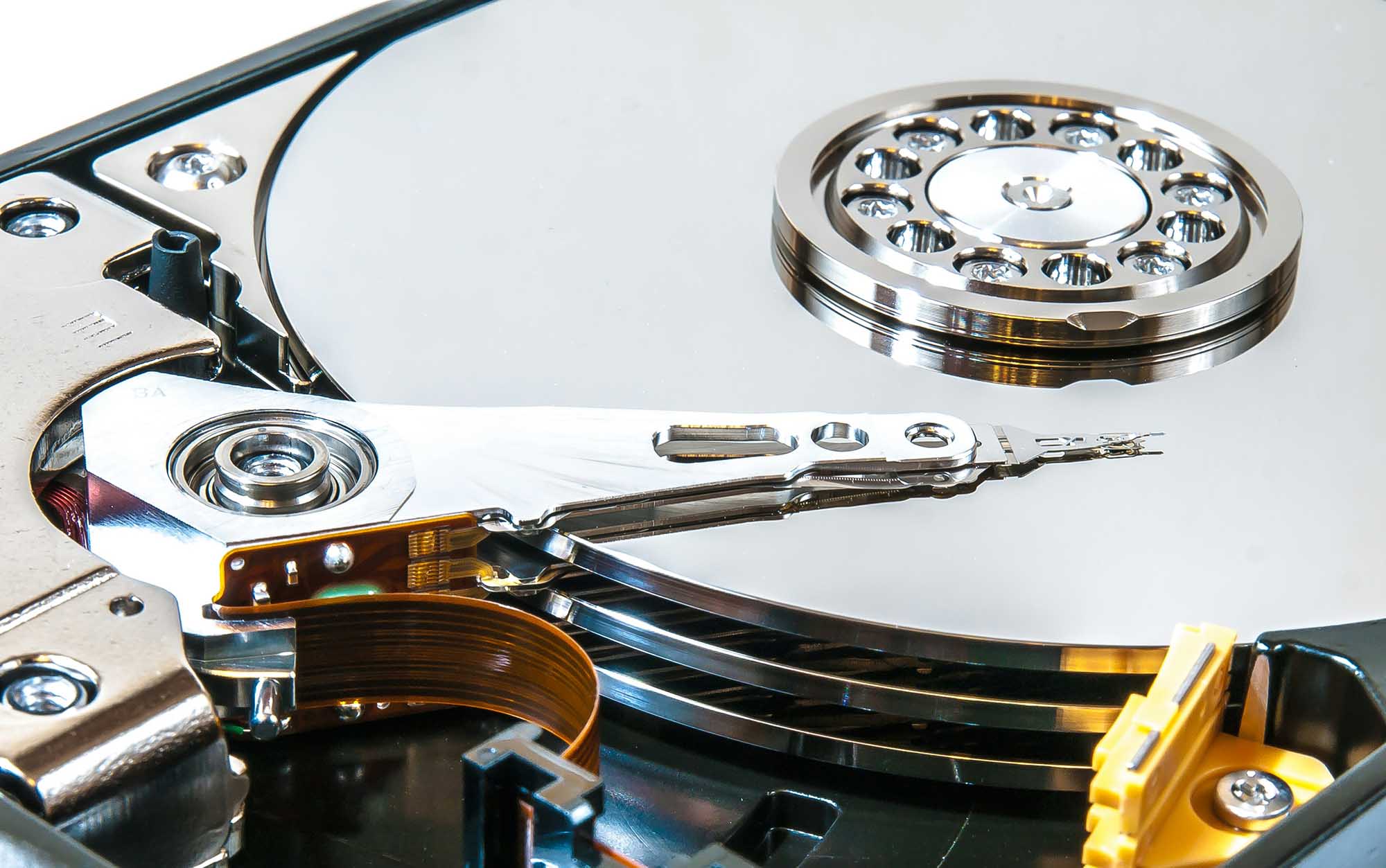
Let’s start with a disk defragmentation definition. Defragmentation is the process of reorganizing data on a hard drive so that pieces of the same file are stored closer together instead of being scattered across the disk. The goal of this process is to reduce unnecessary head movement, improve read/write efficiency, and make the hard drive feel more responsive during everyday tasks.
[Over time, as you create, delete, and modify files, a traditional HDD writes data wherever free space is available. That causes fragmentation, when one file ends up split into many small chunks stored in different physical locations. When the system needs to read that file, the drive’s read head has to jump around to collect all those pieces, which slows everything down. Defragmentation fixes this by rearranging fragmented files into contiguous blocks.
Causes of Fragmentation
The main reason fragmentation happens actually follows directly from the definition of what is hard drive defragmentation is. Traditional hard drives store data in blocks, and ideally, those blocks sit next to each other so the drive head can read them in one smooth movement. Fragmentation appears when that ideal layout breaks down over time.
On a technical level, fragmentation starts the moment a file system can no longer place new data into one continuous stretch of free space. When you create, edit, or expand files, the operating system looks for available blocks. If a single large free area doesn’t exist, it splits the file into pieces and scatters those pieces across the disk. Each fragment still belongs to the same file, but physically, they live in different locations.
This becomes more common as a drive fills up. Early on, when a disk has plenty of empty space, files usually stay contiguous. But as files get deleted, resized, and replaced, free space turns into small gaps rather than one clean area. New data then gets written into whatever gaps are available, which accelerates fragmentation. Frequent file changes make this worse. Large applications, games, virtual machines, archives, and even browser caches constantly grow and shrink. Each change increases the chance that parts of a file end up separated. Over time, even the operating system’s own files can become fragmented.
Fragmentation isn’t caused by a single failure or mistake. It’s a natural side effect of how mechanical hard drives and file systems manage space.
Impact of Fragmentation on Hard Drive Performance
Once fragmentation builds up, its impact shows up directly in how a hard drive behaves. Unlike an SSD, an HDD relies on physical movement (the read/write head has to travel across spinning platters to collect data). When a file is split into dozens or even hundreds of fragments scattered across the disk, that movement increases dramatically.
- The most noticeable effect is slower file access. Opening large files, launching programs, or loading games takes longer because the drive must jump between multiple locations instead of reading data in one continuous pass.
- Fragmentation also leads to higher mechanical wear. More head movement means more stress on moving parts, which can shorten the lifespan of the drive. While fragmentation alone doesn’t cause immediate failure, it does add extra load that accelerates aging — particularly on drives that already have bad sectors or other underlying issues.
- Another side effect is reduced overall system responsiveness. Background tasks such as indexing, antivirus scans, or system updates take longer to complete because they constantly hit fragmented data. In heavily fragmented environments, the operating system may appear sluggish even when CPU and RAM usage look normal.
Benefits of Defragging
Once you understand how fragmentation slows a hard drive down, the value of defragmentation becomes fairly obvious. Defragging doesn’t magically make an old HDD new again, but it does help the drive work the way it was originally designed to.
- The most noticeable benefit is improved read and write speed. When files are stored in one continuous sequence instead of being scattered across the disk, the read/write head doesn’t have to jump around as much. That reduces seek time, which is one of the biggest performance bottlenecks on traditional hard drives. As a result, everyday tasks like opening large files, launching programs, or copying data tend to feel smoother.
- Defragmentation also helps with overall system responsiveness. Operating systems constantly read small system files, logs, and application data. When those files are fragmented, even simple background tasks can take longer than they should. By reorganizing data into contiguous blocks, defragging reduces unnecessary delays and keeps the system from feeling sluggish over time.
- Another benefit is more efficient use of disk space. While defragmentation doesn’t create new free space, it organizes existing data so free areas become larger and more continuous. This makes it easier for the system to write new files without immediately fragmenting them again, which slows down the fragmentation cycle.
That said, defragmentation isn’t completely free of downsides. The process can take a long time on heavily used or nearly full drives, and during that time the disk is under sustained load. On older or already failing hard drives, intensive defragging can sometimes add extra stress. This is why it’s generally recommended to defragment only when needed, and always after making sure important data is backed up.
Process of Defragmentation
By this point, we’ve already covered the basics – what hard drive defragmentation is and what defragmenting a hard drive does. Now it makes sense to explain how the process actually works, step by step, so you understand what happens behind the scenes when a disk is defragmented.
- The process starts with a full scan of the hard drive. The system checks how files are laid out across the disk and identifies fragmented files (those split into multiple non-contiguous pieces). At this stage, nothing changes on the drive; the tool only builds a map of where data currently sits and how fragmented it is.
- Once the scan finishes, the defragmentation tool determines which files are most fragmented and which free spaces can be used to reorganize them. The goal is to find a layout where file pieces can be placed next to each other in sequential order.
- Next comes the actual defragmentation. File fragments are moved and rewritten so that each file occupies a continuous block of disk space.
- After fragmented files are fixed, the tool also tries to group free space together instead of leaving it scattered across the disk. This makes future file writes less likely to become fragmented again.
- Once everything is rearranged, the system performs a final check to ensure file integrity and confirm that no data was lost or corrupted during the process.
How to Defrag a Computer or Laptop
On modern systems, disk maintenance usually runs in the background. Windows schedules optimization automatically, so in many cases you never have to think about it.
Still, if your PC starts to feel slower, file access takes longer, or large folders open with delays, a manual defrag can make sense, but only for traditional hard drives (HDDs), not SSDs.
Windows includes a built-in tool for this, and it takes just a few minutes to use:
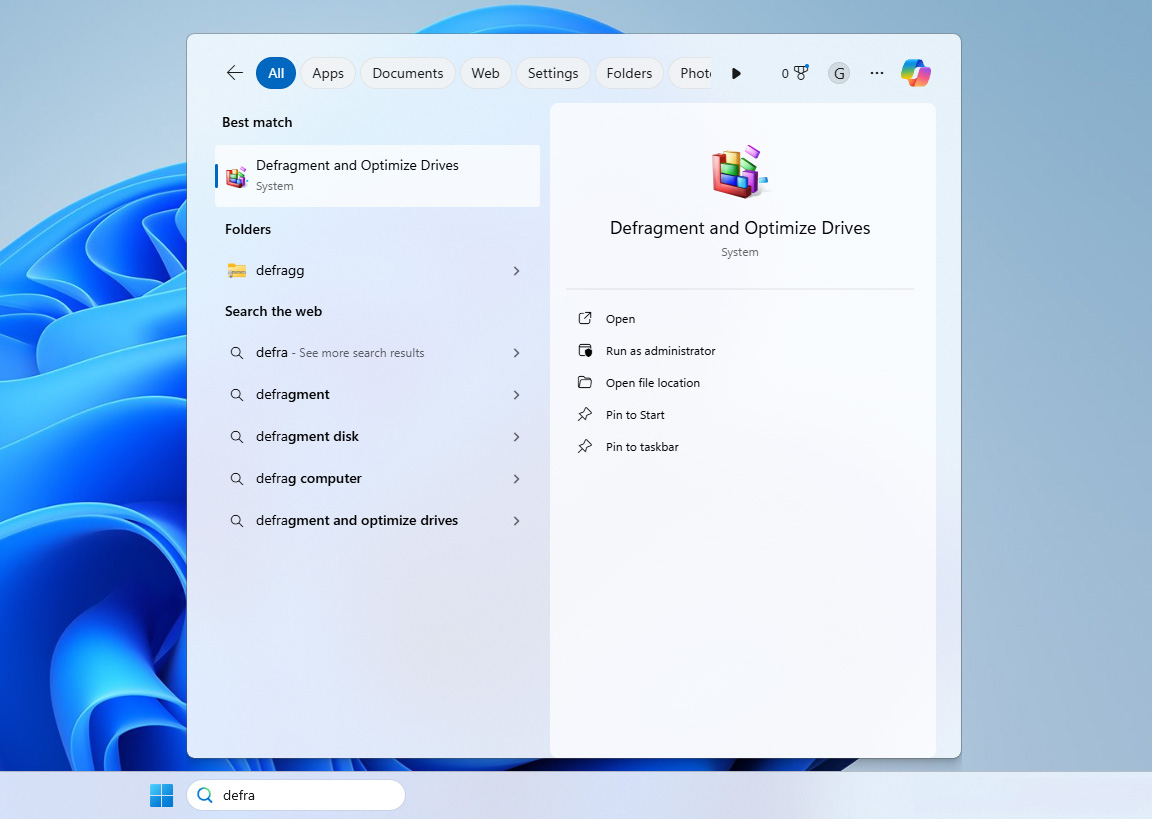
- Open Start and type Defragment and Optimize Drives, then press Enter.
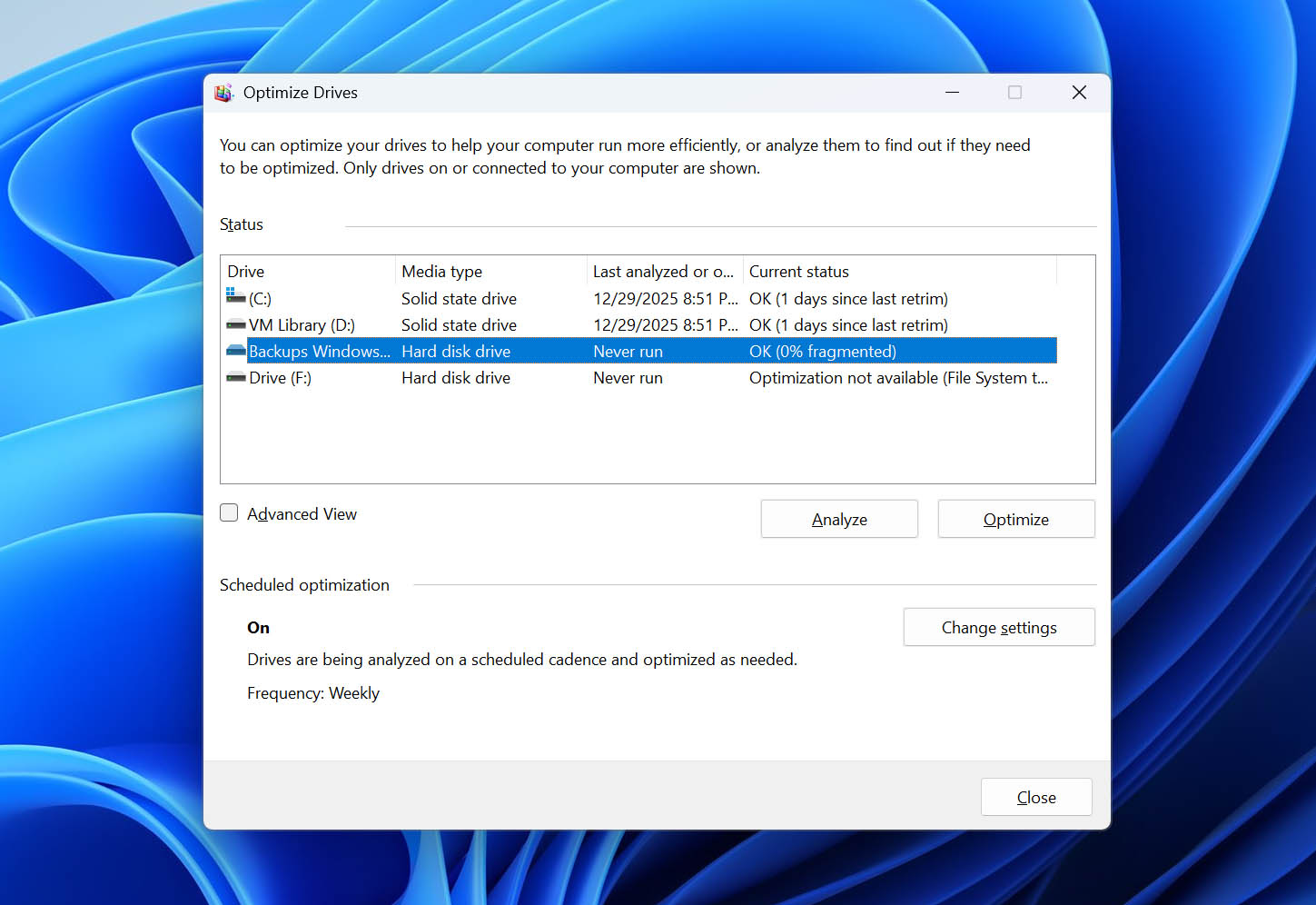
- In the list of drives, select your HDD (Windows clearly labels SSDs and HDDs).
- Click Analyze to check the current fragmentation level.
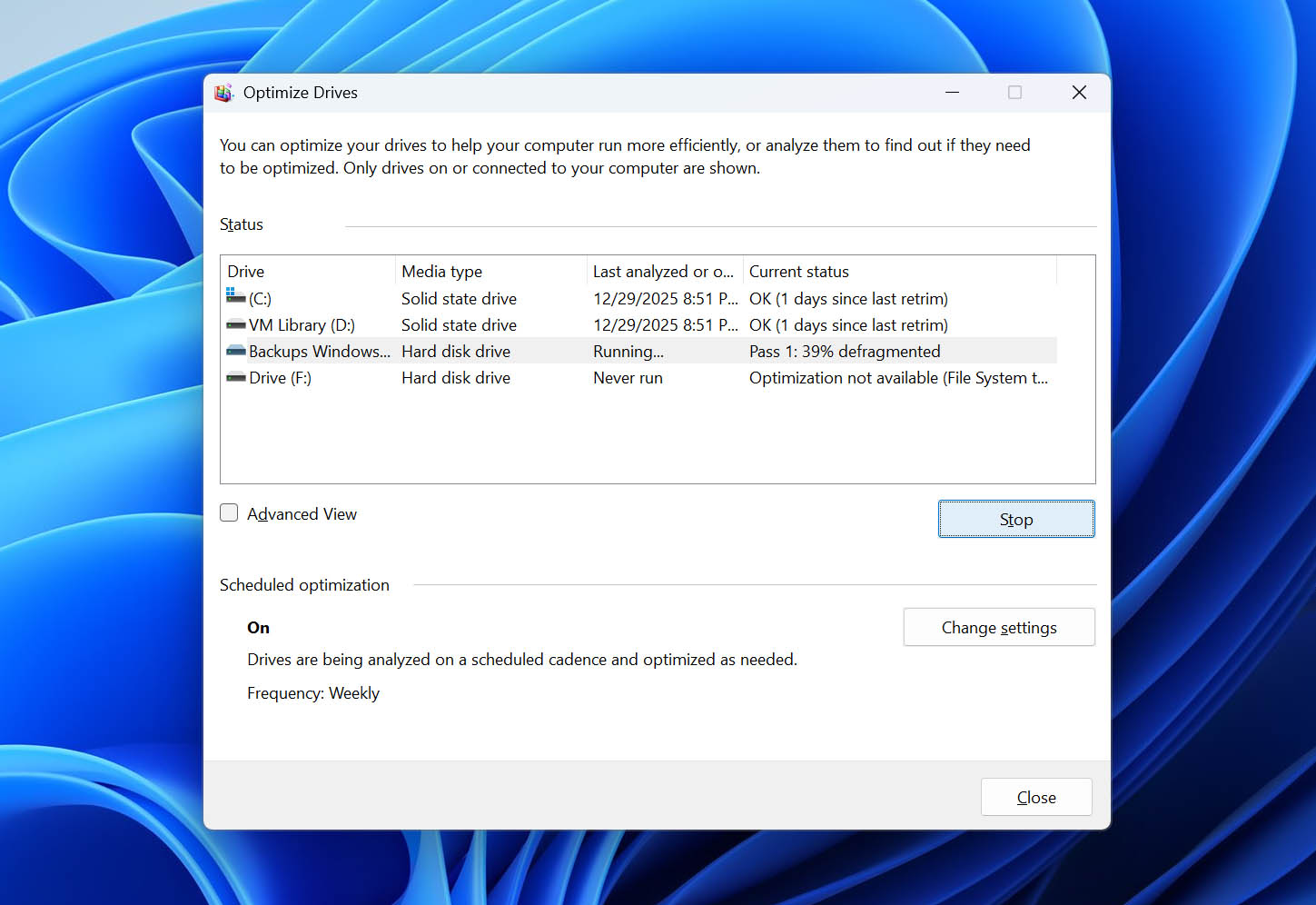
- If Windows reports noticeable fragmentation, click Optimize.
- Wait until the process finishes. The time depends on drive size and fragmentation level. During the process, you can keep using the computer, but performance may dip slightly until it finishes.
What about macOS? On macOS, traditional defragmentation isn’t something users need to manage. The system handles file layout automatically, and modern Apple file systems optimize data placement in the background. There’s no manual defrag tool and none is required.
Alternatives to Traditional Defragmentation
Traditional defragmentation made sense when classic hard drives were the default and data fragmentation directly translated into slower performance. Today, however, it’s no longer the only (or even the best) way to keep a system responsive. Depending on your storage type and usage, there are several alternatives that either reduce the need for defragmentation or replace it entirely.
- One major alternative is automatic background optimization built into modern operating systems. On Windows, scheduled optimization runs quietly in the background and adapts its behavior based on the type of drive you’re using. For HDDs, it still performs classic defragmentation when needed. For SSDs, it switches to maintenance tasks like TRIM instead of rearranging data. This removes the need for frequent manual intervention.
- Another way is migrating to solid-state drives. SSDs don’t suffer from performance penalties caused by fragmentation in the same way HDDs do, since they access data electronically rather than through moving parts. Because of that, traditional defragmentation is not only unnecessary for SSDs but can actually reduce their lifespan. Simply switching to SSD storage eliminates fragmentation as a performance concern altogether.
- File system-level optimization is also worth mentioning. Modern file systems are better at placing data intelligently from the start, which reduces fragmentation before it becomes a problem. They handle free space more efficiently and are less prone to severe file scattering during everyday use.
- Finally, basic disk maintenance can go a long way. Keeping enough free space on a drive, avoiding constant install-delete cycles, and periodically cleaning up unused files all help prevent heavy fragmentation from forming in the first place. While these steps don’t replace defragmentation directly, they often make it unnecessary.