 7 Data Recovery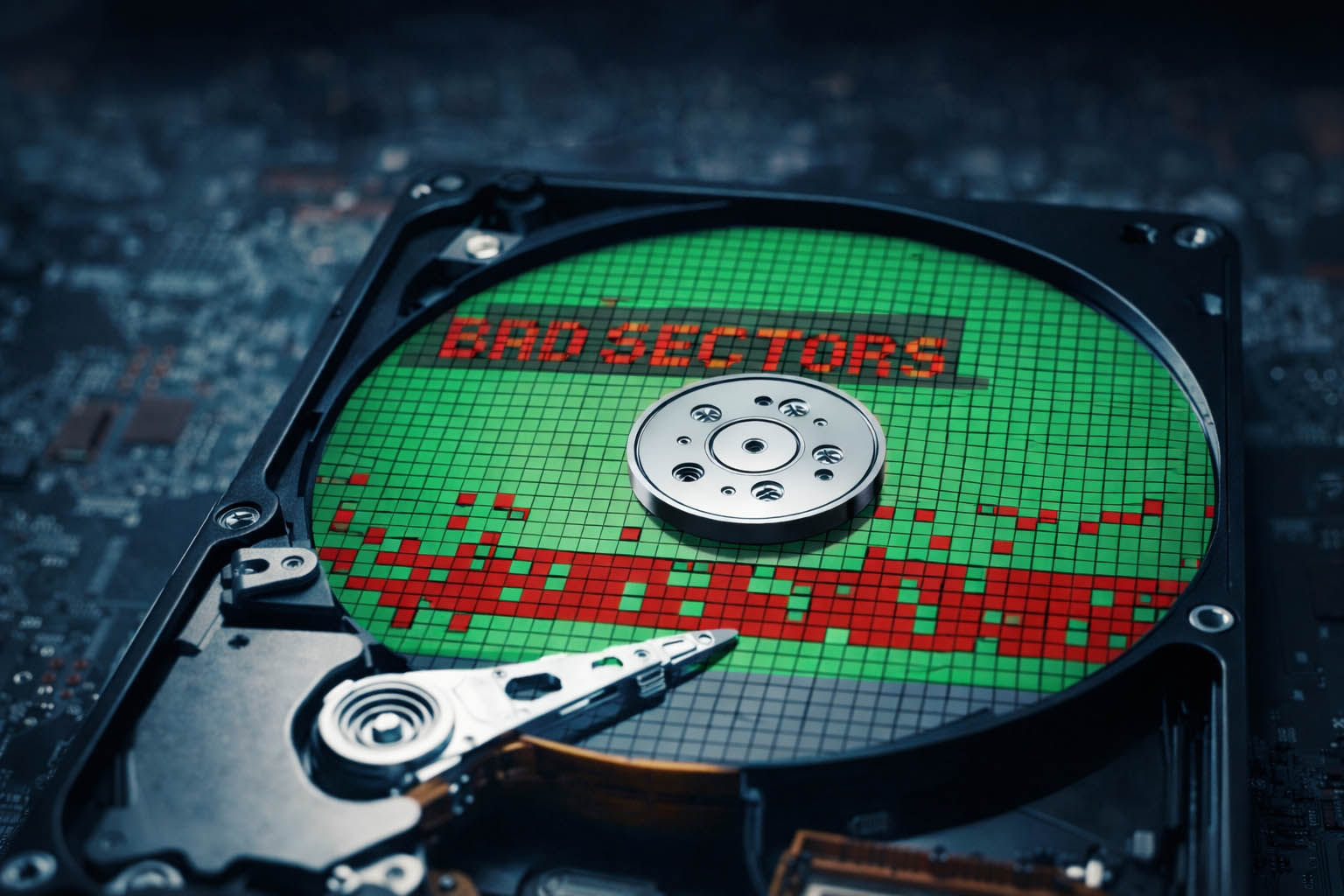
As with most topics, it makes sense to start from the basics and first clarify what is a bad sector on a hard drive. In simple terms, a bad sector is a small area of the disk that can no longer be read or written correctly. When the operating system tries to access that spot, it either slows down, throws an error, or skips the sector entirely.
Hard drives store data in tiny blocks called sectors. Under normal conditions, each sector can safely hold information and return it when the system asks for it. But once a sector becomes damaged, unstable, or unreadable, the drive can no longer trust that area. At that point, it’s labeled as a bad sector, and the operating system tries (sometimes successfully, sometimes not) to work around it.
What makes bad sectors tricky is that they usually don’t announce themselves right away. A drive can continue working normally for a long time with a few bad sectors hidden in the background. But if the disk’s condition isn’t monitored and more bad sectors begin to appear, file access becomes unreliable, performance drops, and eventually the operating system starts showing clear warning signs. If ignored for too long, bad sectors on a hard drive can prevent files from opening, break applications, or even cause the entire drive to fail.
Causes of Bad Sectors on a Hard Drive
A common question that comes up early is whether a brand-new HDD can already have bad sectors. In theory, it can happen, but in practice most bad sectors appear on drives that have already spent some time in active use. Mechanical hard drives wear down gradually, and logical errors tend to accumulate as the disk handles more reads, writes, deletions, and system operations over months or years.
The list of reasons behind bad sectors isn’t very long, but many of them come from everyday situations people rarely think about. On the other hand, these causes help you spot risky behavior early and reduce the chance of bad sectors spreading across the disk.
1. Software Errors and Operating System Failures
One of the most common causes of logical bad sectors is software-level failure. If the operating system crashes during a write operation, or a program freezes while saving data, the information written to the disk can end up incomplete or inconsistent. Over time, the file system may start marking certain sectors as unreadable because the data stored there no longer matches expected structures.
To reduce this risk, avoid force-closing applications whenever possible and let disk-intensive tasks (updates, installations, file transfers) finish properly. Keeping the operating system updated also helps, since many updates fix bugs that can otherwise lead to file system corruption.
2. Sudden Power Loss or Improper Shutdowns
When a computer loses power while the hard drive is actively writing data, some sectors may never finish the write cycle. The disk itself isn’t physically damaged, but the data stored in those sectors becomes unreliable, which is enough for the system to flag them as bad.
Using a UPS (uninterruptible power supply) for desktop systems and making sure laptops shut down cleanly when the battery runs low can significantly lower this risk. Even a few seconds of backup power can prevent long-term disk issues.
3. File System Corruption
File system corruption often develops slowly. Minor inconsistencies might go unnoticed at first, but as the file allocation tables or metadata structures degrade, certain disk areas become harder to read correctly. Eventually, the operating system isolates these sectors to avoid further errors.
Regularly checking the disk with built-in tools (like file system checks) can catch these issues early. The sooner corruption is detected, the less chance it has to spread across additional sectors.
4. Unsafe Removal of External Drives
External hard drives are especially vulnerable to logical bad sectors caused by improper removal. Disconnecting a drive while files are still being copied or cached can interrupt write operations, leaving behind partially written sectors.
Always use the “Safely Remove” option before unplugging external HDDs. It may feel unnecessary, but it gives the system time to finish pending writes and flush cached data safely.
5. Failing Actuator Heads
Failing actuator heads are one of the most dangerous causes because they sit right at the boundary between logical and physical damage. The actuator head is responsible for positioning itself precisely over the disk platters to read and write data. When it starts to wear out or lose accuracy, it may fail to align correctly with specific sectors.
At first, this can look like random read errors or isolated bad sectors. Over time, repeated misreads and retries increase stress on the surface and can permanently damage the affected areas. Warning signs include unusual clicking noises, slow read speeds, or repeated retries when accessing certain files. Once actuator issues appear, backing up data becomes urgent, as the situation rarely improves on its own.
6. Aging Magnetic Surface
Every hard drive has a finite lifespan. Over years of use, the magnetic coating on the platters slowly degrades. Individual sectors lose their ability to reliably hold data, leading to read errors that the drive firmware eventually marks as bad. This is a natural aging process and one of the main reasons why older drives tend to accumulate bad sectors over time.
Regular SMART monitoring helps catch this trend before it escalates into widespread data loss.
7. Physical Shock and Vibration
Dropping a hard drive, bumping a running laptop, or exposing a disk to constant vibration can all contribute to bad sectors. Even a small impact can cause the read/write head to briefly touch the platter surface, damaging tiny areas that later become unreadable.
To minimize risk, always power down external drives before moving them and avoid handling laptops roughly while they are running.
Manipulation Methods for Bad Sectors
If a hard drive has only a few bad sectors and is still accessible, there may be ways to address the problem (at least temporarily). However, before trying any repair or fix methods, you should back up your data.
If the drive still allows direct access to files, copy everything important to another device as soon as possible. If file access is unstable or the system freezes during copying, use data recovery software to clone the hard drive and extract the data onto a healthy drive. Only after your data is safe should you attempt to work with bad sectors.
Why? Most tools that claim to fix bad sectors do not actually repair the damaged area. Instead, they try to isolate or remap problematic blocks while keeping the file system usable. During this process, any data stored inside those bad blocks can be lost permanently.
Once your data is protected, you can consider the following methods.
1. Check the Disk with CHKDSK
On Windows systems, one of the first steps is running CHKDSK. This tool scans the file system for logical errors and can mark bad sectors so the operating system stops using them.
While CHKDSK can help stabilize a drive with minor issues, it does not physically repair bad sectors. Instead, it flags them as unusable. This can reduce crashes and read errors, but it also means that any data located in those sectors becomes inaccessible. CHKDSK is best used when bad sectors are limited and the drive is still mostly stable.
2. Use Specialized Utilities
Tools like Victoria, MHDD, or manufacturer-specific diagnostics go a step further. They perform low-level scans and attempt to force sector reallocation by repeatedly reading or writing to problematic areas.
In some cases, these tools can trigger the drive’s internal firmware to remap weak sectors to spare ones. This may reduce the number of visible bad sectors and improve short-term reliability. However, this approach puts additional stress on the disk and is not a long-term solution. It should be treated as a temporary measure, not a permanent fix.
Manufacturer tools (such as those from Seagate or Western Digital) work in a similar way but are usually safer for drives from their own brand.
3. Full Disk Formatting
A full (non-quick) format forces the drive to scan every sector. During this process, bad sectors may be detected and excluded from future use. This method completely erases all data, which is why it should only be attempted after data backup or recovery.
But a successful format does not mean the drive is “healthy.” It only means the operating system can avoid known bad areas. If new bad sectors continue to appear after formatting, the drive is clearly deteriorating.
If bad sectors keep increasing, none of the tools help, or the disk becomes unreliable again shortly after repairs, replacement is the only sensible option.