 7 Data Recovery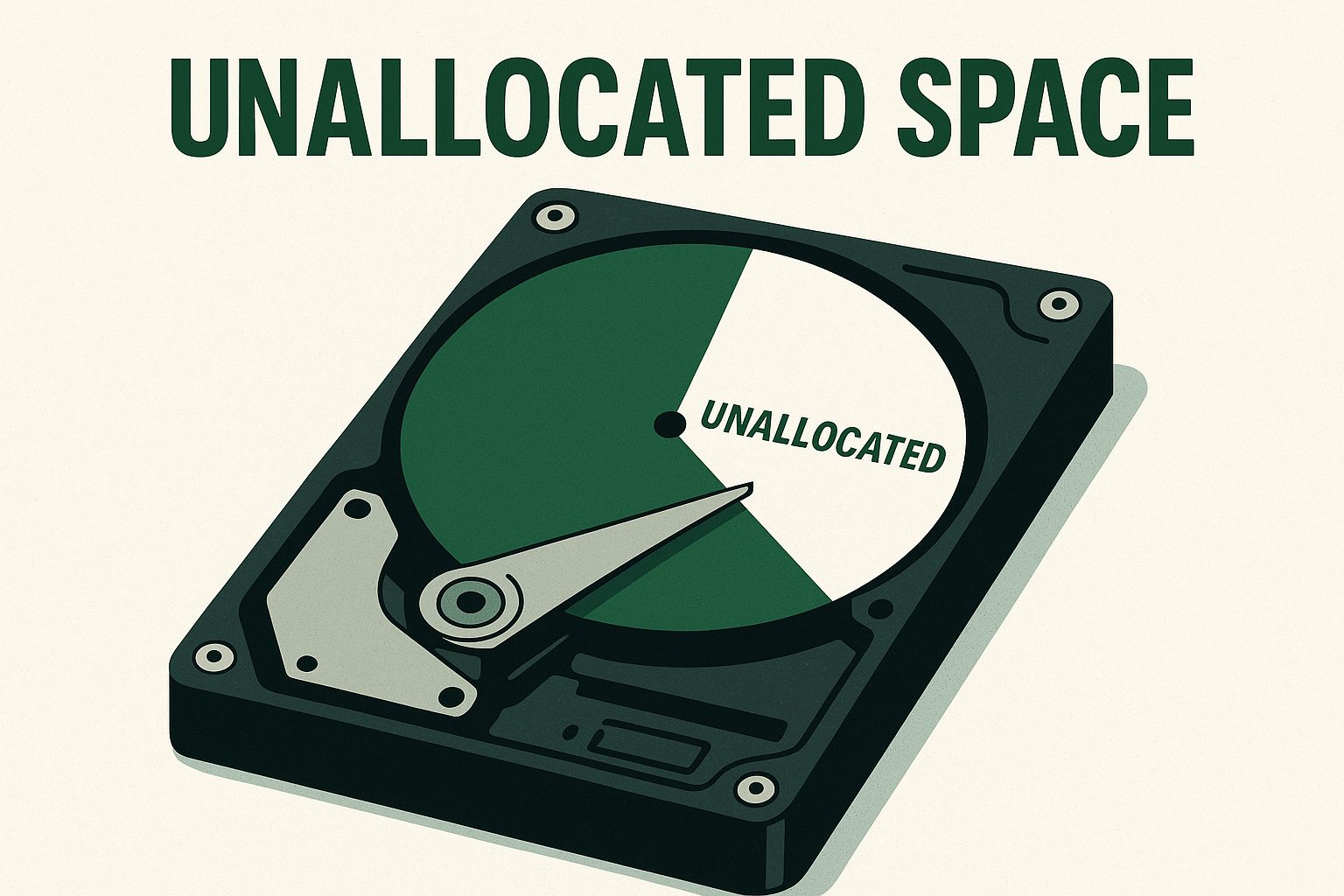
If you had some tech issue with your computer and now your drive shows unallocated space, this page will help you figure out what unallocated space means, why it shows up, how it affects your files, and how to fix the problem.
What Is Unallocated Space?
Unallocated space refers to a portion of a storage device, like a hard drive, SSD, or USB stick, that hasn’t been assigned to any partition or file system. That means the operating system can’t store or access files in that area until it’s been allocated. From the system’s perspective, it’s empty space (even though it might still contain lost data).
To visualize it, think of unallocated space as a vacant lot. Until it’s claimed and developed, nothing can be built or stored on it. It just sits there, unavailable for everyday use, but potentially valuable.
In Windows Disk Management, unallocated space appears as a black bar labeled Unallocated, often after you delete a partition, shrink a volume, or install a new drive that hasn’t been initialized or formatted.
What Is the Difference Between Allocated and Unallocated Space?
The key difference comes down to whether the space is assigned to an active partition or not.
| Type | Meaning | Usability | Data Presence |
| Allocated Space | Space assigned to a partition and formatted with a file system | Readable and writable | Contains active or hidden files |
| Unallocated Space | Space not assigned to any partition | Not usable until formatted/allocated | May contain lost residual data |
While allocated space is in active use, unallocated space isn’t linked to any volume or drive letter. However, unallocated doesn’t always mean truly empty. Deleted files, partition tables, or raw data may still reside there, which makes this space highly relevant in data recovery and digital forensics.
Unallocated space on a hard drive usually appears as a result of a number of events, such as:
- Accidentally deleting a partition
- A failed (interrupted) formatting of the drive
- Shrinking a volume and not using the leftover space
- File system corruption
- Drive initialization not completed on a new disk
- Power loss during disk operations
How to Use Unallocated Space on a Hard Drive
If you want to make use of unallocated space on your hard drive, you’ve got a couple of options, but it’s usually recommended to run a data recovery tool first to retrieve any important data. As we explained earlier, files or fragments of raw data might still be there. Trying to fix or format the space without scanning it first could overwrite or destroy that recoverable information.
Option 1: Extend an Existing Partition (if the unallocated space is adjacent)
If the unallocated space is directly next to an existing partition (most commonly C: drive), you can extend that partition to include the unused space using Windows’ built-in Disk Management tool.
- Open Disk Management (Win + X > Disk Management).
- If the unallocated space is immediately to the right, right-click the partition and choose Extend Volume.
- Follow the prompts in the wizard to merge the space.
If the unallocated space isn’t directly adjacent, this option won’t appear. You’ll need third-party tools to move partitions or use the space elsewhere.
Option 2: Create a New Partition
This is the easiest way to use unallocated space. Just turn it into a new, separate drive.
If you don’t need to expand an existing volume and are okay with having a new one, here’s how to set it up:
- Open Disk Management.
- Right-click the unallocated space.
- Select New Simple Volume.
- Choose the volume size, assign a drive letter, and format it (NTFS is the safest choice for Windows).
- Click Finish to complete the process.
This option involves formatting the unallocated space, which erases any previous data stored there. However, in many cases, it’s still possible to recover files even from formatted storage, as long as the area hasn’t been heavily overwritten. If you suspect important data may still exist, run a recovery tool first before creating a new partition.
Option 3: Use Third-Party Partition Software
If the unallocated space isn’t next to the partition you want to extend (or if Windows won’t let you merge it) third-party partition software can help. These tools go beyond the limits of Disk Management and let you move partitions, merge space, and even extend system drives.
Popular options include:
- MiniTool Partition Wizard
- AOMEI Partition Assistant
- EaseUS Partition Master