 7 Data Recovery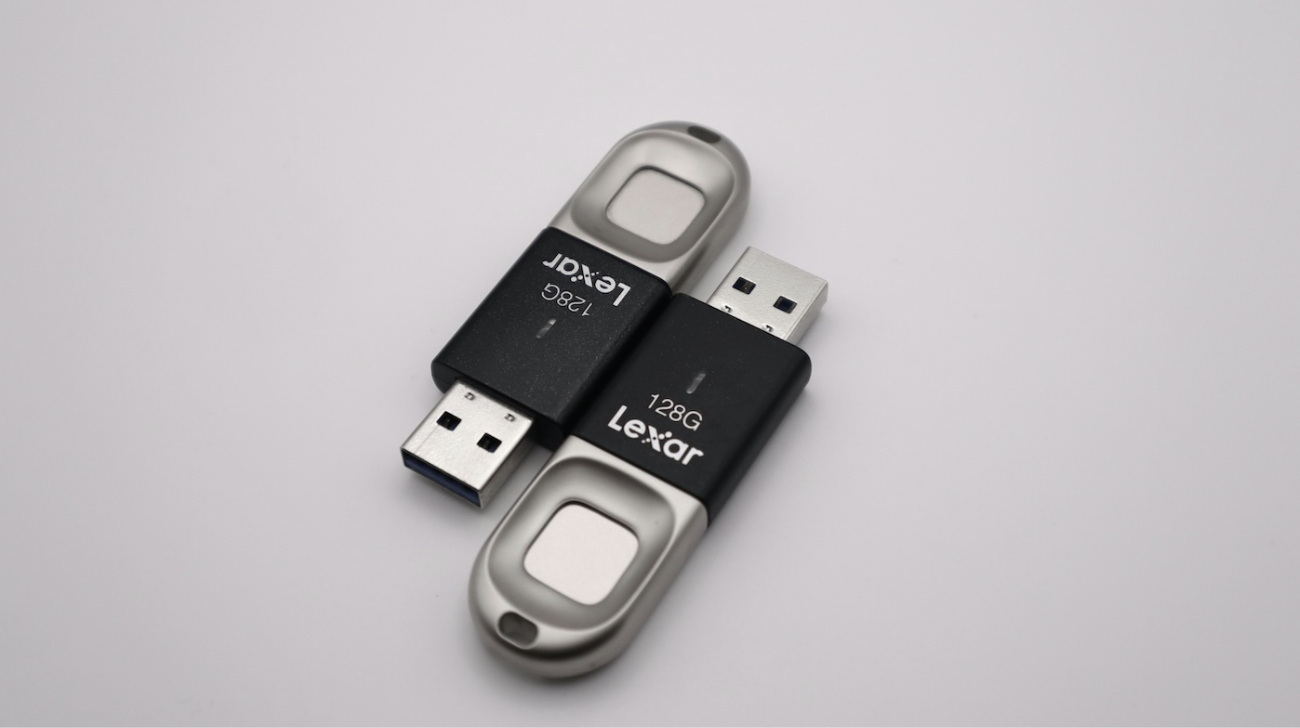
A USB flash drive (also called a thumb drive, pen drive, or simply USB drive) is a compact portable storage device that uses non‑volatile flash memory and connects through a USB (Universal Serial Bus) interface. In simple terms: it lets you carry files and plug them into computers or other devices with USB ports to read/write data.
In short: what a USB flash drive does is provide convenient, plug‑and‑play storage that’s more durable and portable than older removable media (like floppy disks or CDs).
The History of USB Flash Drives
The development of USB flash drives is a story of combining advances in memory technology with standardized interfaces.
- Flash memory (specifically NAND flash) was invented in the 1980s as a kind of memory that retains data without power (non‑volatile).
- Parallel to that, the USB standard was being developed in the mid‑1990s to simplify connections between computers and peripherals (e.g. keyboards, mice, printers).
- The first commercial USB flash drive was introduced around 1999 / 2000. One of the earliest models was the DiskOnKey by M‑Systems, with 8 MB of storage.
- Over time, capacity grew from a few megabytes to gigabytes, and now to terabytes.
- Along the way, USB standards advanced (USB 1.1, 2.0, 3.0, 3.1, 3.2, USB4), improving speed and power efficiency.
- Flash memory itself advanced (single-level cell, multi-level cell, triple-level, quad-level) to cram more bits per cell.
So if you ask when was the first USB flash drive invented, there isn’t a single specific date – the answer would be somewhere around 1999 to 2000.
Pros and Cons of USB Flash Drives
Over the decades, flash drives became ubiquitous due to their simplicity and portability, but like anything, they come with both pros and cons.
Pros:
- They’re small, light, and easy to carry (on a keychain even).
- Modern OSes (Windows, macOS, Linux) support USB drives natively; you don’t need extra drivers.
- Because they’re solid-state, they’re more durable and shock-resistant than mechanical drives.
- They draw minimal power from the USB port.
- Data stays stored even when the drive isn’t connected.
- Wide capacity range.
Flexible use cases.
Cons:
- Flash memory has a finite number of erase/write cycles (over many writes, the drive can wear out).
- Very cheap drives or older ones can be slow, especially for writes.
- Removing the drive without safely ejecting it, or sudden power loss during writing, can corrupt it.
- If lost or stolen, data can be accessed unless encrypted, and flash drives can carry malware if plugged into infected machines.
- Over many years without power, charge leakage can degrade stored data.
For tasks with continuous writing (like video editing scratch space), flash drives generally aren’t durable enough.
USB Specifications
Over the years, there have been numerous USB specifications, and each new version brought faster speeds, better power efficiency, and broader compatibility
| USB Version | Introduced | Typical Max Speed | Notes |
| USB 1.0 / 1.1 | Late 1990s | 1.5 Mbps (low), 12 Mbps (full) | Very slow by today’s standards |
| USB 2.0 (Hi‑Speed) | 2000 | 480 Mbps (~60 MB/s) | Many cheap flash drives use this |
| USB 3.0 (SuperSpeed) | ~2008 | 5 Gbps (~625 MB/s) | Often labeled “USB 3.1 Gen 1” now |
| USB 3.1 (SuperSpeed+) | 2013 | 10 Gbps | 10 Gbps Also “USB 3.1 Gen 2” in some labels |
| USB 3.2 | 2017 | Up to 20 Gbps (with multiple lanes) | Many drives and hosts support subsets |
| USB4 | 2019 / 2020 | Up to 40 Gbps | Integrates Thunderbolt 3, more advanced signaling |
Beyond version, also consider the connector types:
- USB-A – the traditional, rectangular plug. Still most common on older PCs and many flash drives.
- USB-C – reversible, smaller, supports higher speeds and newer protocols (e.g. USB4).
- Micro-USB/USB Micro-B – some older portable drives or OTG “USB on-the-go” adapters used this.
- Lightning/proprietary – rare, mostly in mobile-device accessories.
Compatibility is usually backward: a USB 3.x flash drive will work in a USB 2.0 port (but at lower speed), and vice versa (USB 2.0 drive in a USB 3.x port is limited by the drive).
How Does a Flash Drive Work
When you plug one into your computer, the operating system recognizes it as a storage device through a process called enumeration. It assigns the drive a letter (like E: or F:) and establishes communication.
Behind the scenes, a few key components start working together: NAND flash memory, a controller, a crystal oscillator, and a printed circuit board (PCB).
- The NAND flash chip is where your data is actually stored. It’s non-volatile, so your files stay saved even when the drive is unplugged.
- The controller is the drive’s brain. It manages everything – data flow, addressing, error correction, wear leveling, and translating your file system into physical storage operations. Since flash memory can only be erased in large blocks (but written in smaller pages), updating a single file often means juggling a lot of data behind the scenes. That’s part of why flash drives wear out over time.
- The crystal oscillator provides a precise clock signal that keeps everything in sync. Timing matters in digital electronics, and this tiny component makes sure the controller communicates smoothly with the computer.
- All of this is mounted on a printed circuit board (PCB) – the internal platform that connects the components and routes electrical signals. It’s what holds the drive together at a hardware level.
Power comes from the USB port itself. And depending on whether the drive supports USB 2.0, 3.0, or newer specs, data transfers can range from slow and steady to lightning fast.
Flash drives may look basic, but they’re full of micro-scale tech.
How Do You Use a USB Flash Drive?
USB flash drives are incredibly easy to use, no matter what system you’re on. Whether you’re working on Windows, macOS, Linux, or even some smart TVs and car stereos, the process is usually plug-and-play.
Just insert the drive into an available USB port. Most systems will detect it automatically within seconds. On Windows, you’ll see it pop up in File Explorer under “This PC.” On macOS, it appears on the desktop or in Finder.
From there, using it is as simple as dragging and dropping files. Want to copy a folder of vacation photos? Just select them and move them to the flash drive like you would to any other folder. You can also create new folders, rename files, or delete anything you don’t need, right on the drive.
When you’re done, it’s important to eject the flash drive properly. On Windows, right-click and select “Eject.” On Mac, you can drag the icon to the Trash or hit the eject button in Finder. This step prevents corruption.
FAQs
- Because they’re small and easy to misplace, unencrypted flash drives can pose a security risk if someone else gets access to your files.
- Plugging a flash drive into an infected computer (or vice versa) can spread viruses or malicious code.
- Move documents, photos, or videos between computers.
- Back up critical files or folders.
- Install or repair operating systems with bootable tools.
- Run portable software directly from the drive.
- Store media for use in smart TVs, cars, or gaming consoles.
- Store sensitive information with encryption.
- Use built-in OS encryption tools (e.g. BitLocker on Windows, FileVault on macOS, LUKS on Linux).
- Use third-party encryption software like VeraCrypt.
- Many flash drives come with hardware encryption or built-in security software.
- On Windows, go to File Explorer, then click on This PC or My Computer. Your USB drive will appear under Devices and Drives, usually labeled with a new letter like E: or F:.
- On macOS, open Finder. You’ll see the USB drive listed in the left sidebar under Devices. It may also show up directly on your desktop.
- On Linux, open your file manager (like Nautilus or Dolphin). The drive should appear in the sidebar automatically. If it doesn’t, you may need to mount it manually using a terminal command.